
User Guidline
step by step guide on how to setup e-card profile

Step-1
- First visit E-Card Solution Website
- Then On the Menu You will see Login Option
- Hover over the login option if you are on desktop or PC, then click on the login. If you are on a mobile or Android phone, simply tap on the login.
- Then Click E-Card Profile
ধাপ ১
- প্রথমে E-Card Solution ওয়েবসাইট ভিজিট করুন
- তারপর মেনুতে লগইন অপশন দেখতে পাবেন
- যদি আপনি ডেস্কটপ অথবা পিসি ব্যবহার করছেন তবে লগইন অপশনে হোভার করুন। যদি আপনি মোবাইল অথবা অ্যান্ড্রয়েড ফোন ব্যবহার করছেন তবে লগইন ক্লিক করুন।
- তারপরে E-Card Profile ক্লিক করুন
Step-1
- First visit E-Card Solution Website
- Then On the Menu You will see Login Option
- Hover over the login option if you are on desktop or PC, then click on the login. If you are on a mobile or Android phone, simply tap on the login.
- Then Click E-Card Profile
ধাপ ১
- প্রথমে E-Card Solution ওয়েবসাইট ভিজিট করুন
- তারপর মেনুতে লগইন অপশন দেখতে পাবেন
- যদি আপনি ডেস্কটপ অথবা পিসি ব্যবহার করছেন তবে লগইন অপশনে হোভার করুন। যদি আপনি মোবাইল অথবা অ্যান্ড্রয়েড ফোন ব্যবহার করছেন তবে লগইন ক্লিক করুন।
- তারপরে E-Card Profile ক্লিক করুন

Step-2
- After clicking E-Card Profile You will Be redirect to your E-Card Profile Login Page
- On Login Page Enter your email address associated with your account, then on password field enter your password
- After entering your email and password, click on the “Login” button.
ধাপ-২
- ‘ই-কার্ড প্রোফাইল’ ক্লিক করলে আপনাকে ‘ই-কার্ড প্রোফাইল লগইন’ পেজে নিয়ে যাবে।
- লগইন পেজে আপনার ইমেল ঠিকানা এবং পাসওয়ার্ড লিখুন
- আপনার ইমেল এবং পাসওয়ার্ড প্রবেশ করার পরে, “লগইন” বাটন এ ক্লিক করুন।
Step-3
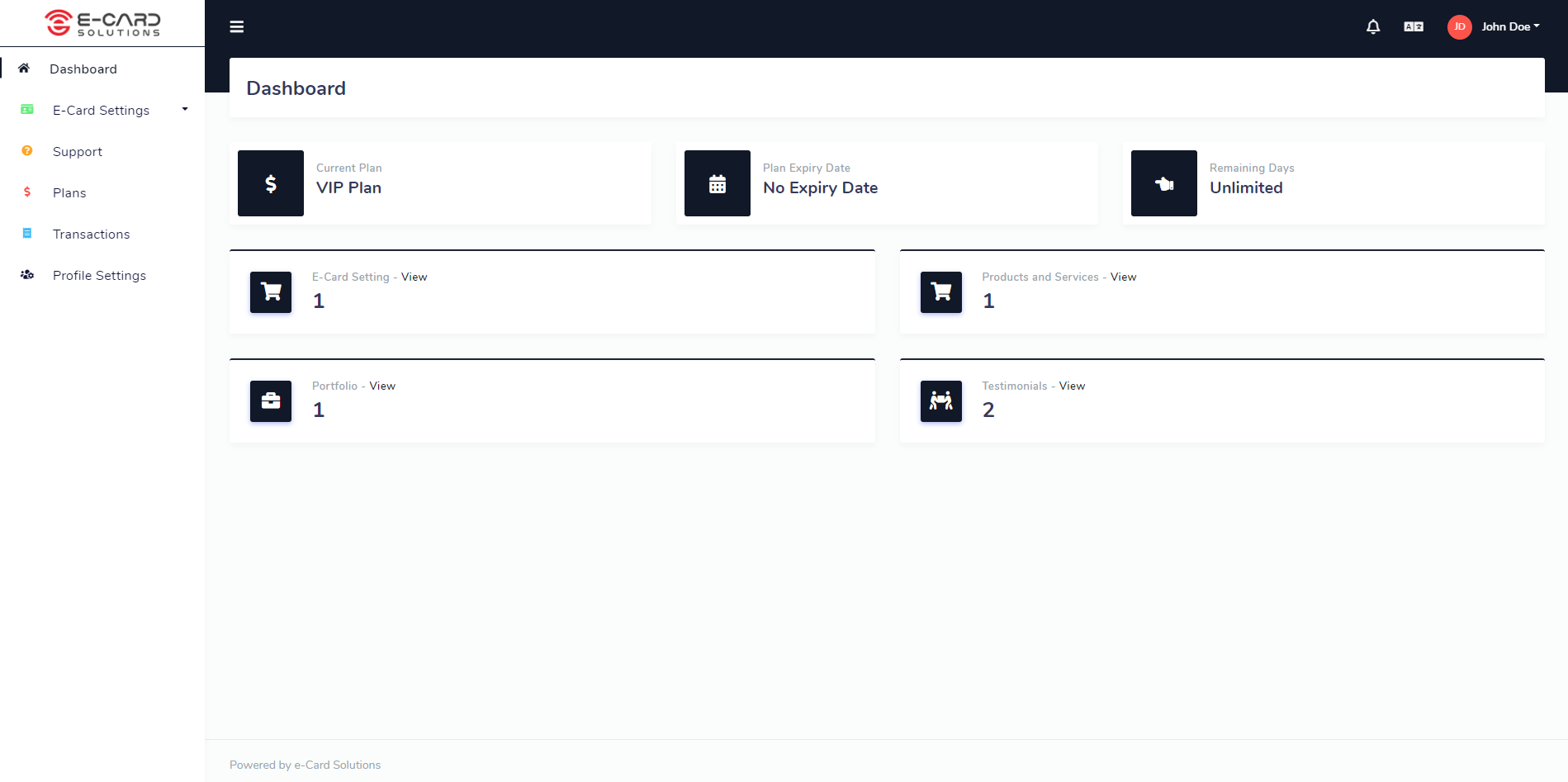
- Upon successful login, you will be redirected to your E-Card Profile Dashboard
- The Dashboard is your central hub for managing your e-Card account. Here, you can: View your current plan and its features, See your plan’s expiry date, Check remaining days on your plan
- You will see E-Card Settings Menu on the left side Of your E-Card Profile
- You will see your name on the right side top corner Of your E-Card Profile
- If you click your name you will get profile & logout option
ধাপ ৩
- সফল ভাবে লগইন করার পরে, আপনাকে আপনার ই-কার্ড প্রোফাইল ড্যাশবোর্ডে রিডাইরেক্ট করা হবে
- আপনার ই-কার্ড অ্যাকাউন্ট পরিচালনার জন্য ড্যাশবোর্ড হল আপনার কেন্দ্রীয় হাব। এখানে, আপনি দেখতে পারবেন : আপনার বর্তমান প্ল্যান এবং এর বৈশিষ্ট্যগুলি, আপনার প্ল্যানের মেয়াদ শেষ হওয়ার তারিখ ও আপনার প্ল্যানের অবশিষ্ট দিনগুলি
- আপনি আপনার ই-কার্ড প্রোফাইলের বাম দিকে ই-কার্ড সেটিংস মেনু দেখতে পাবেন
- আপনি আপনার ই-কার্ড প্রোফাইলের ডানদিকে উপরের কর্নারে আপনার নাম দেখতে পাবেন
- আপনি যদি আপনার নামে ক্লিক করেন তবে আপনি প্রোফাইল এবং লগআউট অপশন দেখতে পাবেন
Step-3
- Upon successful login, you will be redirected to your E-Card Profile Dashboard
- The Dashboard is your central hub for managing your e-Card account. Here, you can: View your current plan and its features, See your plan’s expiry date, Check remaining days on your plan
- You will see E-Card Settings Menu on the left side Of your E-Card Profile
- You will see your name on the right side top corner Of your E-Card Profile
- If you click your name you will get profile & logout option
ধাপ ৩
- সফল ভাবে লগইন করার পরে, আপনাকে আপনার ই-কার্ড প্রোফাইল ড্যাশবোর্ডে রিডাইরেক্ট করা হবে
- আপনার ই-কার্ড অ্যাকাউন্ট পরিচালনার জন্য ড্যাশবোর্ড হল আপনার কেন্দ্রীয় হাব। এখানে, আপনি দেখতে পারবেন : আপনার বর্তমান প্ল্যান এবং এর বৈশিষ্ট্যগুলি, আপনার প্ল্যানের মেয়াদ শেষ হওয়ার তারিখ ও আপনার প্ল্যানের অবশিষ্ট দিনগুলি
- আপনি আপনার ই-কার্ড প্রোফাইলের বাম দিকে ই-কার্ড সেটিংস মেনু দেখতে পাবেন
- আপনি আপনার ই-কার্ড প্রোফাইলের ডানদিকে উপরের কর্নারে আপনার নাম দেখতে পাবেন
- আপনি যদি আপনার নামে ক্লিক করেন তবে আপনি প্রোফাইল এবং লগআউট অপশন দেখতে পাবেন

Step-4
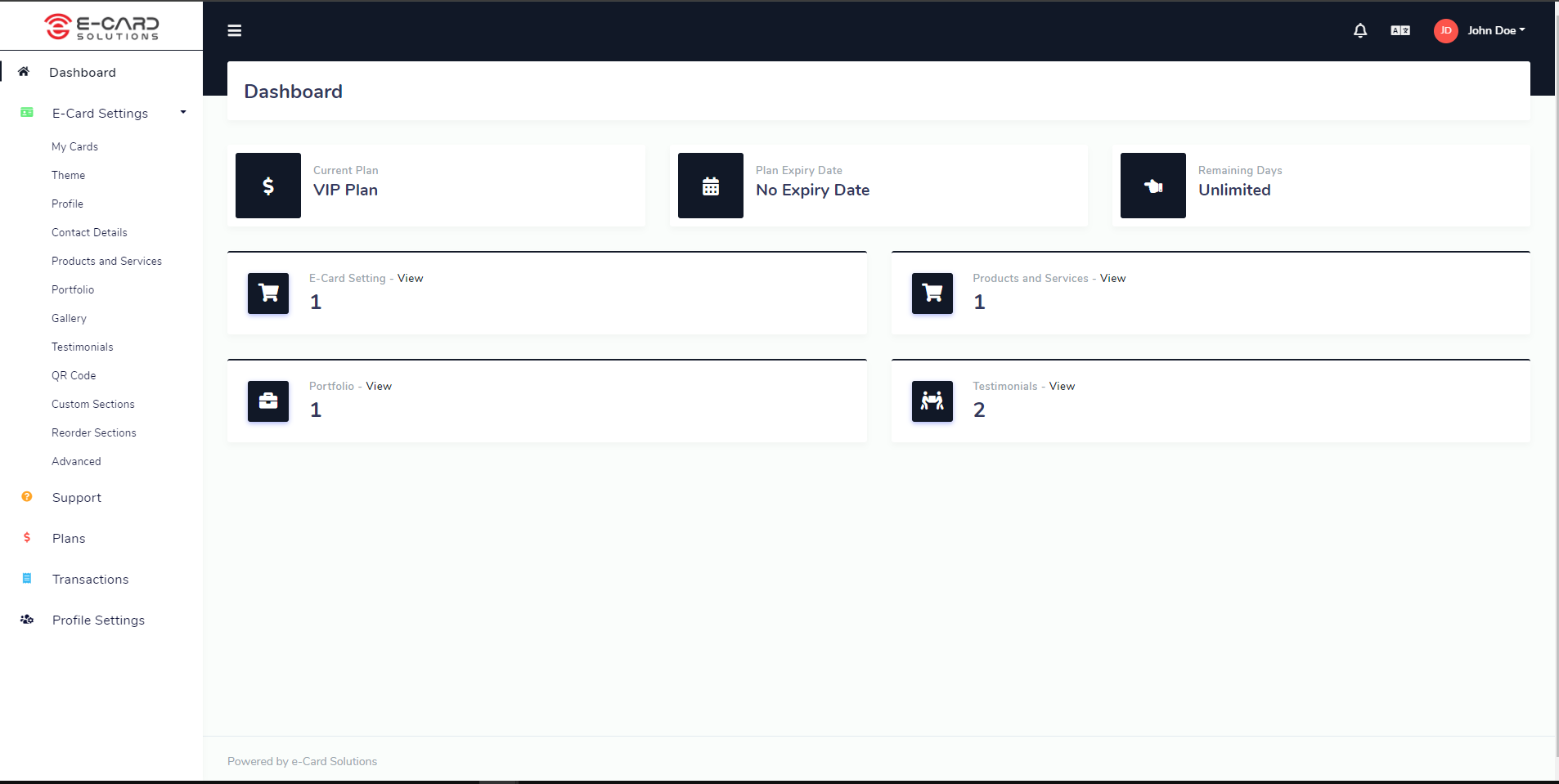
To Begin setting up your e-card profile, follow these steps:
- Click on “E-Card Settings”
- Upon clicking “E-Card Settings” from the dashboard menu, a submenu will expand with various options to customize your e-card.
- My Cards: Under My Cards, you can:
- You can see your cards
- Theme – The Theme section allows you to:
- Select from various pre-designed themes for your e-Card.
- We have 9 themes to choose from. Choose one and start customizing to match your branding.
- Customize colors, fonts, and backgrounds to match your branding.
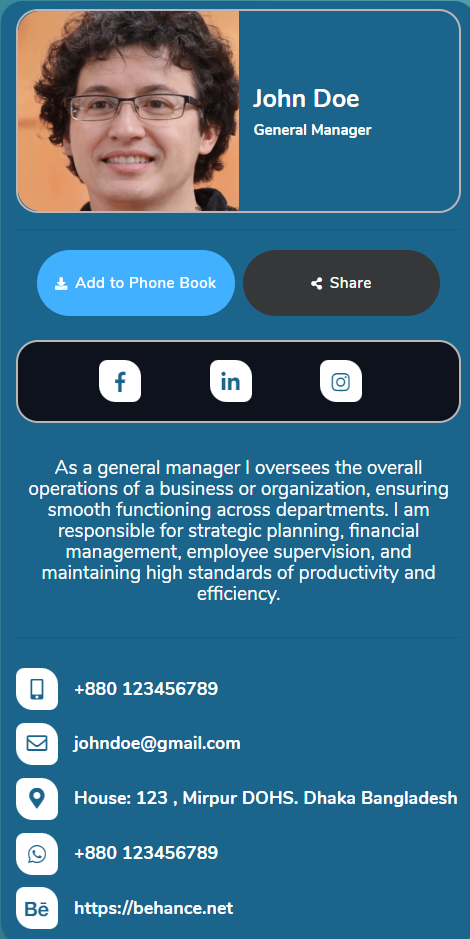
- Profile: You have to Add:
- Your Name
- Your Designation
- Your Profile Image
- Your Banner Image
- Your Card Url/Slug
- Short Description About Yourself
- Note: Profile Setting is must for your profile look and information Watch Tutorial on how setup your E-Card Profile on our youtube Channel
- Contact Details: Manage your contact information, including:
- Email address.
- Phone number.
- Social media links.
- Custom Links And You Can Add Unlimited Contact Details on your profile
- Products and Services: In this section, you can:
- Showcase your products and services.
- Add descriptions, images, and prices.
- Categorize and organize your offerings.
- We have options for slider to showcase your product and services
- Portfolio: The Portfolio feature allows you to:
- Display your work or projects.
- Include images, descriptions, and links.
- Categorize and organize your offerings.
- Highlight your achievements.
- Gallery: Manage your image gallery by:
- Uploading images.
- Sharing images on your e-Card.
- Testimonials: Collect and showcase testimonials from clients:
- Add client feedback.
- Display ratings and reviews.
- Enhance credibility and trust.
- QR Code: Generate and manage QR codes for:
- Easy sharing of your e-Card.
- Quick access to your contact details.
- Convenient networking.
- Custom Sections: Create custom sections for unique content:
- Introduce yourself or your business.
- Share special promotions or announcements.
- Engage visitors with tailored information.
- Reorder Sections: Arrange the order of sections on your e-Card:
- Drag and drop sections to customize layout.
- Prioritize important information for visitors.